A Practical WordPress Maintenance Routine for Updates and Recovery
Plan WordPress core, plugin, theme, PHP, backup, and restore checks without treating every update as a blind live-site change.
 Tayyab Rehman
WordPress maintenance is not a matter of clicking “update all” and hoping. Sites combine core software, themes, plugins, PHP, database services, caching, and custom code. A maintenance routine should keep those parts supported while making recovery possible if a change exposes a compatibility problem.
Know what is installed and supported
Keep an inventory of WordPress core, active and inactive plugins, themes, PHP version, hosting stack, and any custom integrations. Remove extensions that are no longer used, but first confirm they are not supplying data or functionality relied on by another part of the site.
Check the official WordPress requirements before planning PHP changes. Requirements and recommended versions can change; coordinate upgrades with the host, and check compatibility for the site’s plugins and theme rather than assuming a version bump is isolated.
Back up files and database—and test restoration
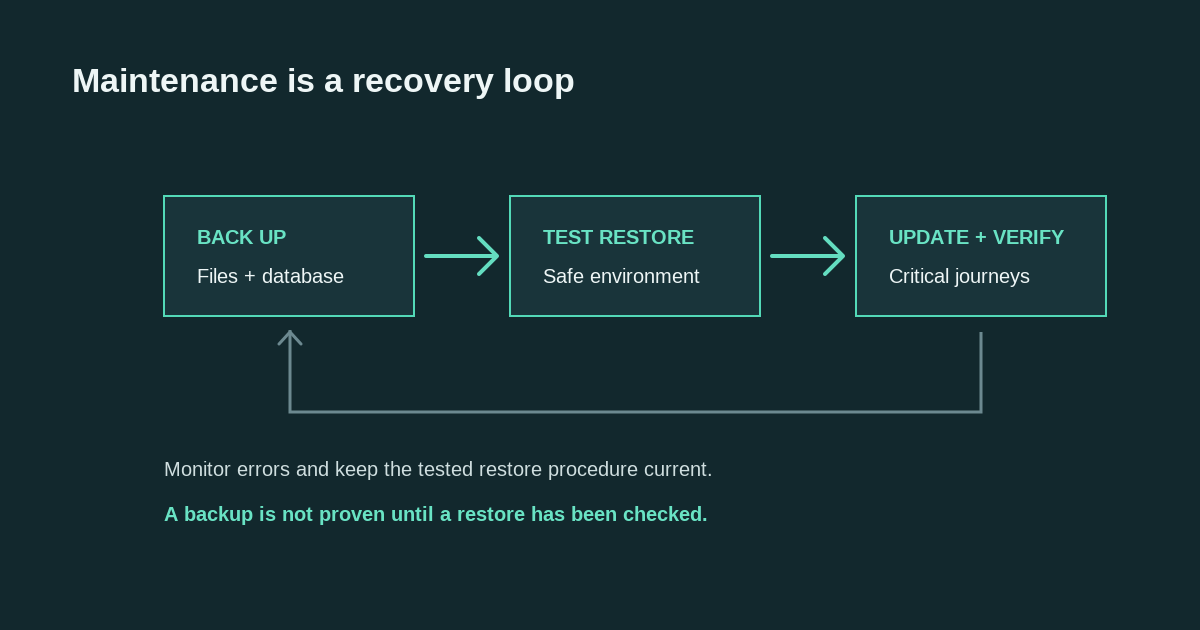
A backup that has never been restored is an unverified assumption. WordPress data lives in both the database and files: uploads, themes, plugins, and configuration may all matter. Confirm that backups cover the required components, are stored separately from the production server, and have retention appropriate to the site’s recovery needs.
Periodically perform a restore into a safe environment. Check that the site opens, media is present, and critical flows work. For a store, avoid exposing copied personal data and ensure a restored test checkout cannot charge real cards or send live notifications.
Choose backup frequency based on how much data can be lost between snapshots. A mostly static portfolio may change infrequently; a shop receiving orders throughout the day may need more frequent database protection. Keep at least one copy outside the hosting account, restrict who can access it, and confirm the backup tool includes uploads and configuration—not only database tables.
During a restore test, note the time required and the exact steps. Verify the WordPress admin, front-end pages, uploaded media, forms, and a safe version of the store’s key journey. If restoring requires a support ticket or a specialist credential, include that dependency in the recovery plan. A backup is only useful when the people responsible can retrieve and restore it under pressure.
Update through a controlled sequence
- Review release notes and check compatibility for important extensions.
- Take a fresh backup and verify that the restore path is available.
- Apply updates to staging first, especially for stores or sites with custom integrations.
- Test the homepage, forms, login, search, and the site’s key conversion journey.
- Deploy to production in a planned window and repeat the critical checks.
Security updates should not be postponed indefinitely. If a change cannot be applied immediately, understand the exposure and arrange a prompt, deliberate test and rollout rather than leaving the site on unsupported software.
Separate routine updates from urgent security work. Review the source and impact of a security advisory, confirm which installed component and version are affected, and coordinate a prompt update with the site's recovery plan. A staging test can reduce compatibility risk, but testing should not become an excuse to leave a known exposure unaddressed. If a full test environment is not available, prioritize a verified backup, the smallest safe change, and immediate checks of the affected feature.
After the update, check the work that matters to the site's visitors rather than only confirming that the dashboard has no warning. For a store, verify product pages, cart changes, payment in a safe test mode, order creation, and notifications. For a lead-generation site, submit a form, check the recipient and confirmation, and verify analytics without exposing personal form data. Compare the same route and steps before and after so a hidden regression does not blend into routine maintenance.
Use a cadence that matches site risk
For a brochure site, a documented monthly review may be a reasonable baseline; a store with frequent orders, integrations, or custom code may need more frequent monitoring. The precise schedule depends on change rate and risk. Check for pending updates, backup success, disk capacity, uptime errors, and unexpected administrator accounts. After significant releases, inspect logs and run the main user journeys.
Separate routine checks from urgent security response. A monthly calendar reminder should not mean leaving a known security fix unattended until month-end. Subscribe to relevant release notices, understand whether the host applies core or PHP updates, and make responsibilities explicit. Avoid enabling unattended major updates on a complex store until the team understands how regressions are detected and reversed.
Assign an owner for each recurring check. Someone should be able to confirm that the backup completed, determine whether the host also keeps a separate copy, review failed scheduled jobs, and decide who can approve a rollback. Record the date and result rather than marking a task complete based only on an email notification. If a check fails, note the next action and responsible person; an alert with no owner tends to become background noise.
Keep the maintenance checklist proportional to the site. A simple brochure site may need a short monthly review plus event-driven checks after changes. A store with frequent orders, subscriptions, or external fulfillment needs closer monitoring of the order pipeline and backup freshness. Use the WooCommerce HPOS compatibility checklist for order-storage changes and the plugin conflict diagnosis workflow when an update appears to break a feature.
Make recovery part of the plan
Write down who can restore the database and files, where credentials are stored, how to contact the host, and how to disable a broken release. WordPress’s hardening guidance covers backups and other security practices. A short, tested runbook is more useful during an incident than an undocumented collection of plugins.
Keep an update log with the date, changed component, backup reference, and checks completed. If the site is business-critical, define who can approve an emergency rollback and how the team will communicate an outage. Schedule a recurring restore test so the instructions stay accurate as the host, backup tool, and site architecture change. Recovery readiness is an ongoing maintenance task, not a one-time setup checkbox.
Decide two recovery targets with the people responsible for the site: how long the business can tolerate the site being unavailable, and how much recent data it can afford to lose. These are often called recovery time and recovery point objectives. They help determine whether a weekly backup is adequate for a rarely changed brochure site or whether a store needs more frequent database protection. The right interval depends on order and content change rates; there is no universal schedule.
During a restore drill, use an access-restricted environment, disable real payment capture and outgoing customer messages, and protect any copied personal data. Record where the backup came from, how long restoration took, what was missing, and which staff or host permissions were required. If a restore fails, update the process and test it again before relying on it for a production incident.
Use a simple release checklist: confirm the backup completed; review the change notes; update staging where the change is risky; test the key user journey; deploy in a planned window; then check logs, uptime, forms, and orders. Roll back only with a clear plan for new data written after the backup. For a conflict that appears after an update, follow the one-change-at-a-time troubleshooting guide; for scheduled backup or sync jobs, review WP-Cron and automation behavior.
The official WordPress backup guide recommends backing up both the site and database and describes backup options. The WordPress hardening guide provides related security practices. Check your host's current restore procedure too, since access, retention, and tooling vary.
WordPress maintenance questions
How often should a WordPress site be backed up?
Choose a schedule based on how often important data changes and how much loss the business could tolerate. A store accepting orders throughout the day usually needs a different plan from a mostly static site.
Is an automated backup enough?
Automation can create copies, but it does not prove that they are complete or restorable. Periodically restore a copy in a safe environment and verify the pages, media, and critical workflows.
Should updates be applied immediately?
Do not ignore security updates, but use a controlled process that accounts for the site's risk and recovery plan. Test high-impact changes on staging and avoid leaving known urgent exposure unaddressed while waiting for a routine maintenance window.
What does a restore test need to verify?
Check that the site loads, media and configuration are present, and essential workflows work. For stores, use a safe payment environment and prevent test emails or copied customer data from reaching real users.