WooCommerce HPOS: A Compatibility Checklist Before You Switch
Understand High-Performance Order Storage and check extensions, custom code, synchronization, and order workflows before changing storage.
 Tayyab Rehman
High-Performance Order Storage (HPOS) changes where WooCommerce stores order data. Instead of relying on the WordPress posts and postmeta tables as the primary order store, HPOS uses dedicated order tables. The change can improve the fit of order storage for some stores, but extensions and custom code need to use supported WooCommerce APIs to work correctly.
Find code that assumes orders are posts
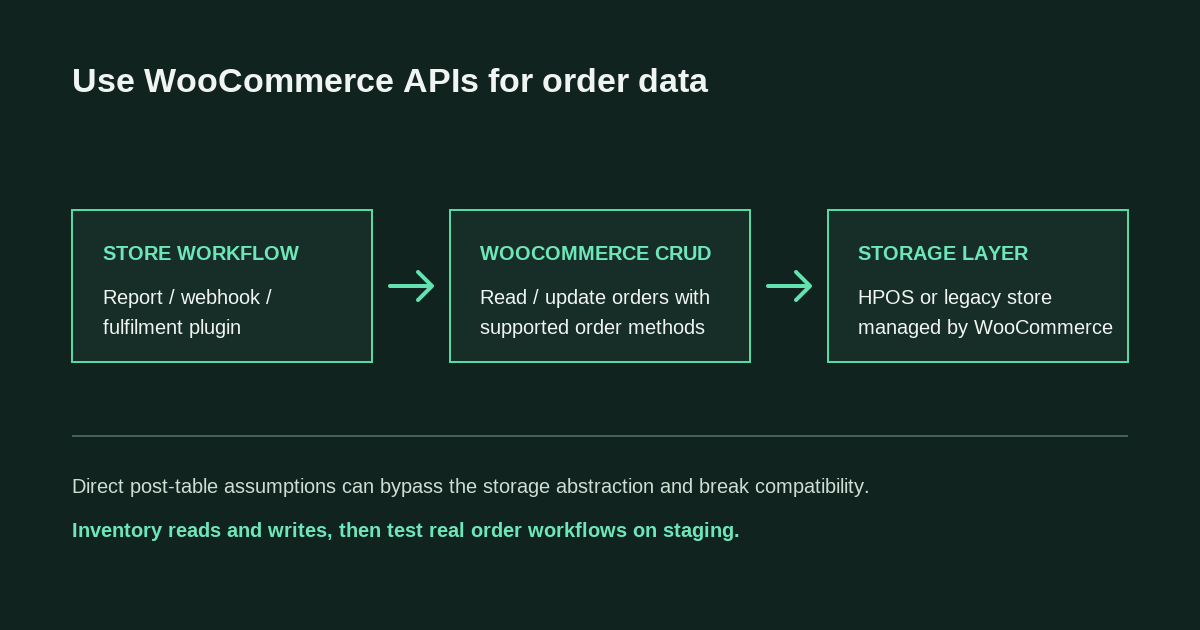
Older integrations may read orders directly through WordPress post queries, inspect post metadata, or assume an order ID always maps to a particular post row. Those assumptions can fail when HPOS is enabled or when compatibility synchronization is involved. Search custom code and ask extension vendors whether the installed version declares HPOS compatibility.
Pay particular attention to custom reports, fulfillment integrations, accounting exports, subscriptions, order-status automation, and code that modifies order metadata. A normal checkout test alone will not exercise every order-reading path.
For custom code, use WooCommerce’s order APIs rather than querying storage tables directly. A simple read should start from the order object, for example $order = wc_get_order( $order_id );, and use its methods to read supported properties. For writes, use the corresponding order methods and save through the API. The exact method depends on the data being handled; check the current developer documentation instead of translating a database query by guesswork.
Pay special attention to code that runs outside the storefront request: scheduled exports, webhook handlers, admin reports, and command-line jobs can each use a different code path. Search for direct references to order post types, post metadata, and assumptions that an order is a WP_Post. A code search is a useful inventory, but inspect how each match is used before deciding it is incompatible.
Inventory and update before migration
- Record the WooCommerce version, extensions, custom integrations, and current order storage setting.
- Update WooCommerce and extensions in a tested staging environment.
- Review compatibility information from each extension developer.
- Check custom code for direct access to post tables rather than WooCommerce order APIs.
- Back up the database and files and confirm a restore has been tested.
Compatibility declarations are a useful signal, not a substitute for testing the functions your store actually uses. If a required extension is not ready, get a supported release or a documented migration plan before switching.
Make the inventory actionable by recording who owns each integration, what order data it reads or writes, and when it runs. A payment plugin may touch the order immediately; an accounting export may query it hours later; a support dashboard may read a historical address when a customer calls. Include cron events, Action Scheduler tasks, webhook consumers, reports, and custom command-line scripts. These delayed paths are easy to miss when testing only a new checkout.
For custom code, note the operation as well as the function: read order status, update metadata, create a refund, or list matching orders. Check current WooCommerce developer guidance for the supported object methods and query APIs for that operation. Avoid treating a code-search match as an automatic failure: a plugin may already use compatibility helpers, while a less obvious query can still depend on legacy storage. Review context and test the actual behavior.
Understand synchronization and switching constraints
WooCommerce provides compatibility and data synchronization mechanisms to support sites and extensions during the transition. Synchronization may take time on stores with many orders. Check the current WooCommerce documentation for the exact prerequisites and restrictions on switching storage, especially when synchronization is pending. Do not force a setting change just because the toggle is visible.
Test the workflows that depend on orders
On staging, create an order and exercise the entire lifecycle: payment success and failure, refunds, cancellation, status updates, customer emails, shipping or fulfillment export, and any connected accounting or CRM process. Check existing orders as well as new ones, and compare key reports against the previous storage mode.
For scheduled tasks and integrations, verify both immediate and delayed behavior. A process that reads an order hours later may expose a compatibility problem that a synchronous checkout does not.
Build the test list from the store’s actual operational routines. Include guest and account orders, variable products, taxes, shipping methods, coupons, and any custom statuses when applicable. Confirm that an order can be found in the admin, that its address and line items are correct, and that changing its status triggers the expected downstream action exactly once. Use test credentials for any external service and keep real customer notifications disabled in staging.
Include data consistency checks in the test plan. Compare a small, privacy-safe sample of order IDs, totals, statuses, and line-item counts in the admin and in each connected system. Confirm the test environment cannot send live emails or charges. Exercise a delayed task after the order is created, not only the request that creates it. If synchronization is supported for the current configuration, verify its completion state in the documented WooCommerce interface before deciding that the migration is ready.
Test failure handling too. What happens if an export endpoint times out after WooCommerce saved the order? Can the job retry without creating a duplicate invoice or fulfillment request? Does a refund remain visible to staff if the accounting integration is unavailable? These questions are about integration reliability as much as storage compatibility; document which system owns each record and how staff can reconcile a failure.
Switch deliberately and monitor
When the documented prerequisites are met and tests pass, schedule the change at a time when staff can monitor orders. Keep the backup and a rollback plan available. Afterward, inspect WooCommerce logs, failed scheduled actions, order counts, and external integration queues. If data appears out of sync, pause the rollout and follow the official recovery guidance rather than manually editing database rows.
Start with the official HPOS documentation and its notes on backward compatibility and synchronization; confirm details against the WooCommerce version installed on the store.
Have a clear stop condition before the change: for example, an unexpected order count, an integration queue that stops draining, or a failed refund test. Decide in advance who will investigate and how to pause dependent imports or exports safely. Avoid parallel manual edits in the database while synchronization is active; keep evidence and follow the supported WooCommerce procedure so the source of truth remains clear.
Communicate the rollout to the people who handle orders. Tell staff when the change begins, what dashboard or logs to monitor, and how to report an unexpected order state. Keep the backup reference, test results, extension versions, and rollback criteria in one runbook. If the first production checks fail, pause new migration work and follow the supported recovery process; do not try to “repair” a few records manually while synchronization may still be running.
Do not use raw order IDs, addresses, or payment details in a public bug report. When comparing systems, use the minimum fields needed and restrict access to test data. If an external fulfillment or accounting service needs live order details, document that data flow and its retry behavior. A storage migration can expose old integration assumptions, so it is also a useful time to confirm which systems retain order data and how staff request deletion or correction where applicable.
Keep the final go/no-go decision tied to evidence: required extensions declare supported compatibility for the versions in use, synchronization is complete according to current documentation, representative reads and writes passed, delayed jobs ran, and restore and rollback steps are understood. If one item cannot be verified, record it as an open risk and decide whether to delay the switch or obtain help from the extension maintainer. A green compatibility indicator alone does not settle that operational decision.
Build the migration test plan from the store's real order readers and writers. Search custom plugins, theme code, scheduled jobs, webhooks, reports, and command-line tasks for direct order-table access or post-type assumptions. Review each result in context: a matching string is a lead to inspect, not proof of incompatibility. Replace storage-specific assumptions with WooCommerce's supported order APIs where appropriate, then test both creating and updating orders.
Do not treat compatibility mode as proof that every connected extension is safe. Test historical and new orders, refunds, status transitions, delayed exports, and any action triggered more than once. Record synchronization state and follow the current WooCommerce instructions before changing the authoritative data store. If a problem appears, stop the rollout and use the documented recovery path rather than editing database rows directly.
For the customer-facing checkout and payment steps that depend on order handling, pair this checklist with the WooCommerce checkout investigation guide. If order synchronization uses scheduled background work, also review the WP-Cron reliability guide.
HPOS questions
Does a plugin declaring HPOS compatibility prove the whole store is ready?
No. It is one useful signal. You still need to check custom code, integrations, scheduled jobs, and the workflows your store relies on.
Can I switch storage while synchronization is running?
Do not assume that is safe. Check the current version's WooCommerce instructions and wait for the documented prerequisites and synchronization state before switching.
Should custom code query the HPOS tables directly?
No. Use the supported WooCommerce order APIs so code does not depend on one storage layout. The API methods should match the data and operation being performed.
What should I test beyond checkout?
Test refunds, cancellations, order-status changes, customer notifications, exports, webhooks, reports, and delayed jobs. Include existing orders as well as new orders.