How to Find the Real Cause of a Slow WooCommerce Storefront
A diagnostic workflow for slow product and category pages that looks beyond image compression to server response and page resources.
 Tayyab Rehman
When a WooCommerce page feels slow, compressing the largest image is a reasonable first thought—but not a complete diagnosis. Largest Contentful Paint (LCP) can be delayed by server response, redirects, render-blocking resources, or the time it takes to discover and load the main image. Find the actual LCP element and trace its critical path before choosing a fix.
Separate field experience from a lab run
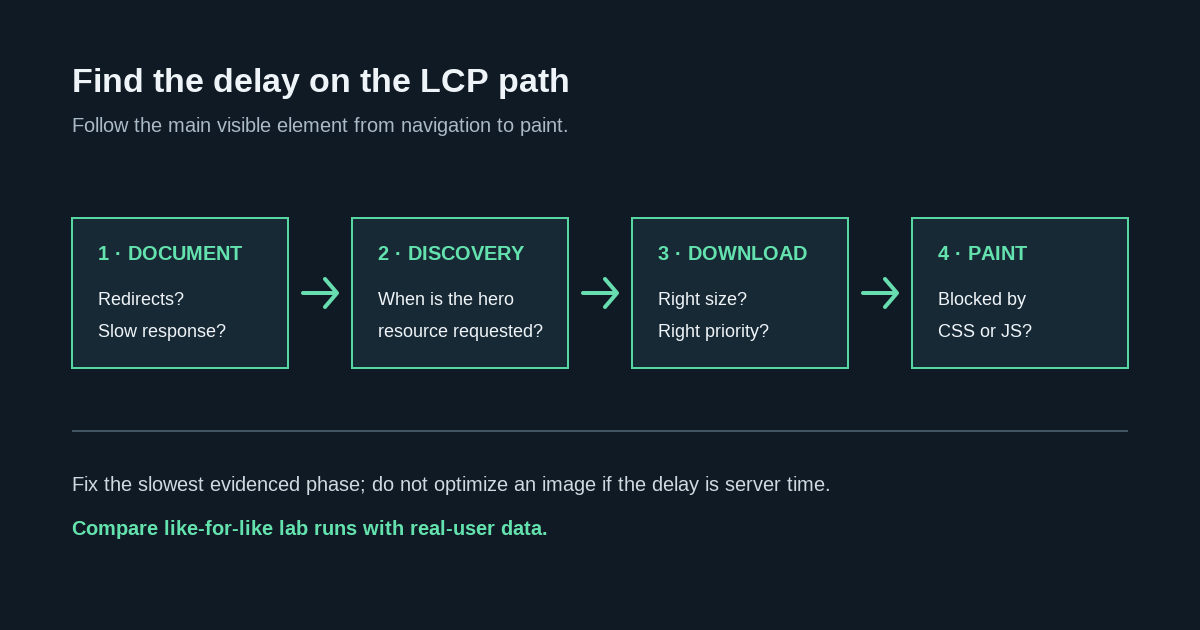
Field data shows what real visitors experience across devices and networks; a lab test helps reproduce and inspect a page under controlled conditions. Look at the affected URL type—product, category, cart—and segment by mobile and desktop. A homepage score may not reveal a slow product template or an overloaded filtered listing.
Use the browser performance tools and a PageSpeed Insights report to identify the LCP element and whether time is spent waiting for the server, discovering the resource, downloading it, or rendering it. web.dev’s LCP guidance uses 2.5 seconds or less at the 75th percentile as the “good” threshold; it is a diagnostic target, not a promise of ranking or sales impact.
Field measurements answer whether real visitors experience the delay; lab measurements help explain why a controlled test is slow. Use both where available. If field data is unavailable for a specific URL, use a representative page and device profile, then be clear that it is a lab result rather than a direct measure of every customer’s experience. Repeat test runs because network and server variation can make a single score misleading.
Check the page’s main image
If the LCP element is a product or hero image, make sure it is sized for the rendered display and served in an efficient format. Provide responsive image candidates so mobile devices do not download a desktop-sized asset. Avoid lazy-loading an image that is visible immediately on page load. Verify that the browser can discover the image promptly and that the chosen source is the right one.
Open the LCP element details and note its URL and timing before changing image settings. If the image request starts late, inspect whether CSS or JavaScript hides the element or discovers its URL only after execution. If the request starts promptly but takes a long time to download, inspect the transferred size, responsive sources, cache behavior, and server delivery. If the image is ready but paints late, look for render-blocking CSS, fonts, or main-thread work.
Do not add preload or high fetch priority to every image. Those hints are for a resource that is both important and otherwise discovered too late; applying them broadly can compete with other critical resources. Confirm the browser actually selects the intended product-image variant at mobile and desktop widths.
Investigate server response and redirects
Record the initial document response time and check for avoidable redirect chains. Compare cached and uncached requests, and ask the host whether database load, PHP workers, or resource limits are involved. WooCommerce pages that depend on cart or account state may not use the same cache behavior as static pages; do not cache personalized content indiscriminately.
Inspect the waterfall from navigation through the LCP paint. A redirect chain delays every resource discovery that follows it. A slow initial response points toward server or database work, while a late image request can suggest discovery or markup problems. A resource that downloads quickly but paints late may be waiting behind render-blocking CSS or main-thread work. The phase matters: optimizing the wrong one often produces little visible change.
Use the LCP subparts as a guide rather than treating the total as one undifferentiated number. Time to First Byte (TTFB) helps describe the wait for the document response. Resource load delay is time before the browser starts requesting the LCP resource. Resource load duration covers its transfer, and element render delay is the remaining wait before it is painted. The same total LCP can therefore have very different causes.
If the product hero appears in the initial HTML but its request starts late, inspect lazy-loading attributes, CSS backgrounds, client-side rendering, and whether the image is discoverable before scripts run. If the request starts quickly but the transfer is long, inspect the selected file size and server response. If transfer finishes promptly but paint is delayed, look for blocking styles or expensive JavaScript. Verify the selected image in the browser's network panel; a responsive srcset may correctly select a different file than the one you expected.
Audit scripts, styles, and extensions
Inspect which assets are loaded on the affected template. A page builder, analytics tags, chat tools, variation selectors, and marketing extensions all contribute work. Remove unused resources where safe and test performance after each change, but preserve checkout, accessibility, analytics, and consent behavior. Site-wide asset removal rules can silently break a specific template.
Be cautious with broad performance fixes. A cache exclusion that covers every product page may protect cart state but also remove useful page caching; a script delay can improve one lab run while making the first product interaction wait. Check logged-in and logged-out behavior, product variants, currency or region settings, and consent choices before changing a global rule. Document the templates and user states tested, not just the homepage score.
For each test, keep the URL, viewport, network profile, cache state, test date, and LCP element in a short log. Change one likely bottleneck and run multiple comparable tests rather than comparing a cold-cache baseline with a warm-cache result. When the template serves filtered catalog URLs, also review whether those URLs create unnecessary work or duplicate destinations using the WooCommerce filter and canonical guide.
Retest the same journey
Change one bottleneck at a time and retest the same URL, device, and conditions. Keep real-user monitoring in view after deployment: lab gains can differ from field experience. The web.dev LCP guide explains the phases and opportunities, while WooCommerce provides a slow-site troubleshooting checklist.
For a repeatable comparison, record the tested URL, viewport, network condition, cache state, LCP element, and test date. Avoid comparing a warm cached run with a cold one and attributing the entire difference to a code change. Once the page is stable, monitor representative product and category templates over time; an extension update or new campaign script can change the critical path later.
After a deployment, repeat the original lab steps and then review field data as it becomes available. If the LCP element changes because a promotion, product image, or template changed, diagnose the new element rather than assuming the old fix still applies. Keep a short record of the measured page and test conditions so later plugin updates can be compared fairly. Where no field sample exists for a particular product URL, say so; a representative template is useful evidence, but it is not the same thing as a measurement of every URL.
For each finding, state the observed bottleneck and the evidence that supports it: for example, “the image request starts after the product gallery script runs,” rather than “the site needs image optimization.” That precision helps a developer make the smallest safe change and gives the store owner a concrete way to verify the result. Keep a rollback option for changes to caching, scripts, or responsive image generation, since these can affect logged-in and purchasing flows differently.
If the document itself is slow, coordinate with the host before changing WordPress plugins at random. Compare repeat requests under the same cache conditions, note whether the delay is limited to uncached requests, and ask what server-side metrics are available. A slow initial response may involve database queries, PHP execution, an overloaded worker pool, or remote services; a browser waterfall alone cannot identify which server component needs more resources.
If the page paints quickly but controls still feel delayed, diagnose that separately with the INP guide for storefront interactions. The LCP metric is about the main visible content; it does not describe every part of the shopping experience.
WooCommerce LCP questions
Should I lazy-load the main product image?
Usually not when it is the visible LCP image: lazy loading can delay a resource the browser needs immediately. Check the rendered page and browser waterfall to identify the actual LCP element before changing its loading behavior.
Is a low Lighthouse score enough to explain what shoppers see?
No. A lab score is useful for diagnosis, while field data indicates how real visitors experience the site. Compare both where available and keep device and page-template differences in view.
Should I preload every product image?
No. Prioritize the single resource that is demonstrably important and discovered late. Broad preloading can consume bandwidth needed by the actual LCP element or other critical resources.
What should I retest on a WooCommerce store?
Use representative product and category templates on mobile and desktop. Check the initial paint plus product variations, cart updates, and checkout so an optimization does not break the purchase journey.